<?xml version="1.0" encoding="iso-8859-1"?>
<feed version="0.3" xmlns="http://purl.org/atom/ns#" xmlns:dc="http://purl.org/dc/elements/1.1/" xml:lang="en">
  <title>wandering mobile blog</title>
  <link rel="alternate" type="text/html" href="http://www.wanderinghuman.com/blog/" />
  <modified>2009-05-03T06:55:36Z</modified>
  <tagline></tagline>
  <id>tag:www.wanderinghuman.com,2009:/blog/1</id>
  <generator url="http://www.movabletype.org/" version="2.661">Movable Type</generator>
  <copyright>Copyright (c) 2009, jmiller099</copyright>
  <entry>
    <title>Birth of WakeDisp Tool for Windows XP</title>
    <link rel="alternate" type="text/html" href="http://www.wanderinghuman.com/blog/archives/000119.html" />
    <modified>2009-05-03T06:55:36Z</modified>
    <issued>2009-05-03T15:55:36+08:00</issued>
    <id>tag:www.wanderinghuman.com,2009:/blog/1.119</id>
    <created>2009-05-03T06:55:36Z</created>
    <summary type="text/plain">This is a tool I created to work around what I will define as bug-fix extortion. In my life I have a general purpose low wattage server. Even with it&apos;s low wattage it is still desirable to allow it to...</summary>
    <author>
      <name>jmiller099</name>
      <url>http://www.wanderinghuman.com</url>
      <email>jmiller099@hotmail.com</email>
    </author>
    <dc:subject>Software</dc:subject>
    <content type="text/html" mode="escaped" xml:lang="en" xml:base="http://www.wanderinghuman.com/blog/">
      <![CDATA[<p>This is a tool I created to work around what I will define as bug-fix extortion. In my life I have a general purpose low wattage server. Even with it's low wattage it is still desirable to allow it to go to various sleep states or complete power down. As with many servers there is no monitor, also known as a headless machine. It is able to be woken remotely inside my LAN by the Wake-On-LAN functionality. It was my first time to use it, although I had been aware of it for years.</p>

<p>Wake-On-LAN (WoL) allows me to sit on my couch or at my desk and wake the server up, so the file shares become available and the daemon processes run to accept client input. However, there's a single snarl in the situation and that is achieving remote administration through VNC after the WoL wakes the machine up.  The error when attempting the VNC is "SelectObject to CompatibleDC failed: The operation completed successfully (0)".</p>

<p>Some research into this problem gave me the following insight:<br />
<A HREF="http://www.realvnc.com/pipermail/vnc-list/2006-April/054680.html">http://www.realvnc.com/pipermail/vnc-list/2006-April/054680.html</A></p>

<p>From: James Weatherall <b>jnw "at" realvnc.com </b><br />
Date: Wed, 19 Apr 2006 17:07:23 +0100</p>

<p><i>Hi there,</p>

<p>VNC Enterprise & Personal Editions 4.2 will include the fix <br />
for this issue.<br />
I'm afraid I don't have a timeframe for the fix making into <br />
Free Edition at<br />
present.</p>

<p>Regards,<br />
Wez @ RealVNC Ltd.<br />
</i></p>

<p>Here we are now a few years later and the fix never made it into the Free Edition. While I like the product and would like to support the company, this is a fairly strange way to operate in my opinion. So, I made this tool to wake up the graphics adapter when a WoL event comes in. This tool lives with no UI other than the stuff you see in the service manager. It probably only works on Windows XP and I have no idea about installation with permissions less than administrator.</p>

<p><A HREF="http://wanderinghuman.com/DispWakeup/">Download it Here</A></p>]]>
      <![CDATA[<p><p><a id="install"></a><br /><br />
<h2> Installation Instruction</h2></p></p>

<p>1. Go to the <A HREF="http://wanderinghuman.com/DispWakeup/">download page to download</A> and save the zip package to your hard drive. <br />
2. Unzip the package to where you'd like the executable to remain in your system. I put it in C:\Windows\system32, but it can probably go anywhere you have write permissions and expect to be present at boot up. I'd avoid any usb flash or external hard drives.<br />
3. Run the RegisterDisp.bat by double clicking on it.</p>

<p><p><a id="usage"></a><br /><br />
<h2>Operating Usage Instruction</h2></p></p>

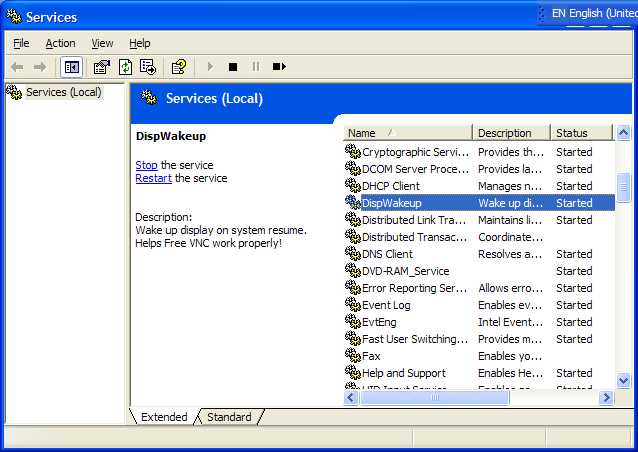
<p>Once you have installed it, it will start running as a service and be set to run again each time you boot your machine. If you'd like to alter that then you can manage it through the Conrol Panel (Classic View) -> Administrative Tools -> Services and locating the DispWakeup in the list as shown in the image below. Right click it and select properties for any of the options you want to modify.</p>

<p><IMG SRC="http://www.wanderinghuman.com/software/photos/blog/DispWakeupSvc.png" /></p>

<p>To uninstall you can run UnRegDisp.bat.<br />
</p>]]>
    </content>
  </entry>
  <entry>
    <title>Sneak Preview: HandiDct</title>
    <link rel="alternate" type="text/html" href="http://www.wanderinghuman.com/blog/archives/000118.html" />
    <modified>2008-07-18T05:05:08Z</modified>
    <issued>2008-07-18T14:05:08+08:00</issued>
    <id>tag:www.wanderinghuman.com,2008:/blog/1.118</id>
    <created>2008-07-18T05:05:08Z</created>
    <summary type="text/plain">It has been a while since I updated. I have been a little scatter brained plus I was hard at work on some software to help me learn some stuff. Since it is in a finalised UI form I thought...</summary>
    <author>
      <name>jmiller099</name>
      <url>http://www.wanderinghuman.com</url>
      <email>jmiller099@hotmail.com</email>
    </author>
    <dc:subject>Software</dc:subject>
    <content type="text/html" mode="escaped" xml:lang="en" xml:base="http://www.wanderinghuman.com/blog/">
      <![CDATA[<p>It has been a while since I updated. I have been a little scatter brained plus I was hard at work on some software to help me learn some stuff. Since it is in a finalised UI form I thought I would post it. This will hopefully give you something to look forward towards. </p>

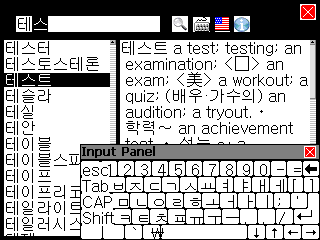
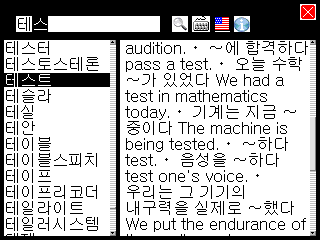
<p>The software is a hopefully lightweight Korean and English translator dictionary. It uses an open source dictionary that can be found on the web and a whole bunch of code behind it for the user interaction and the input method editor. Much of that input method editor code was lifted from my free <a href="http://www.wanderinghuman.com/krinput">krinput software</a>. The code is highly portable, it just uses some basic Windows primitives. In fact, the same exact code base is running on Windows and Windows CE.</p>

<p>In the meantime I have the following tasks to complete before posting:</p>

<ul>
<li> Test to ensure functionality</li>
<li> Port to other bit depths (I only tried 16 and 32 bit) </li>
<li> Test on Windows CE 2.0 and higher (I only tried on Windows CE .NET 4.2) </li>
<li> Shrink memory size if needed for that Windows CE 2.0 device class </li>
<li> Port to allow using on non touchpad/mouse/trackpad devices, like Windows Mobile </li>
</ul>

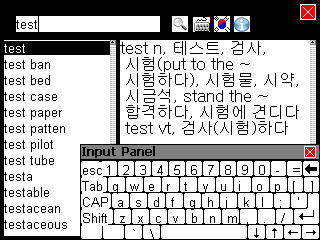
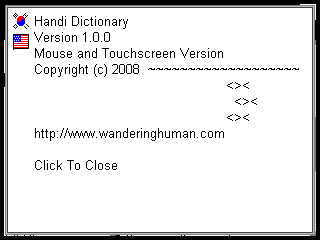
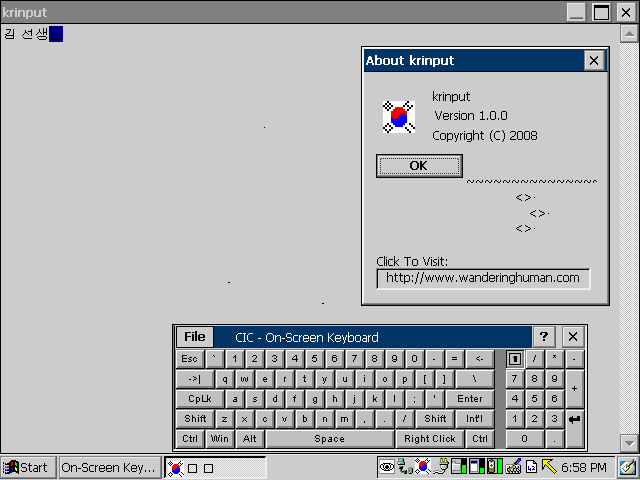
<p>Now for a few screenshots, so you can know what to expect forthcoming.</p>

<p><H3>English to Korean with Soft English Keyboard and IME</H3><br />
<IMG SRC="http://www.wanderinghuman.com/software/photos/blog/HDSS1.png" /> </A><br /><br />
<H3>Korean to English with Soft Hangeul (Hangul) Keyboard and IME</H3><br />
<IMG SRC="http://www.wanderinghuman.com/software/photos/blog/HDSS2.png" /> </A><br /><br />
<H3>Korean to English with Soft Keyboard Hidden</H3><br />
<IMG SRC="http://www.wanderinghuman.com/software/photos/blog/HDSS3.png" /> </A><br /><br />
<H3>The About Box</H3><br />
<IMG SRC="http://www.wanderinghuman.com/software/photos/blog/HDSS4.png" /> </A><br /></p>

<p>I have one or two more Windows CE devices coming in to test the low color depths and older version. Still have to test on multiple processor types as well. I expect I can post the software for download in another 4 weeks. Stay tuned here!</p>]]>
      
    </content>
  </entry>
  <entry>
    <title>krinput for Windows CE H/PC Updated!</title>
    <link rel="alternate" type="text/html" href="http://www.wanderinghuman.com/blog/archives/000117.html" />
    <modified>2008-06-18T02:25:03Z</modified>
    <issued>2008-06-18T11:25:03+08:00</issued>
    <id>tag:www.wanderinghuman.com,2008:/blog/1.117</id>
    <created>2008-06-18T02:25:03Z</created>
    <summary type="text/plain">A reader pointed out a flaw when using this program on a Jornada 720, since I didn&apos;t have one it took some time to acquire it. After receiving the unit, I fixed the error that renders it fairly unusable where...</summary>
    <author>
      <name>jmiller099</name>
      <url>http://www.wanderinghuman.com</url>
      <email>jmiller099@hotmail.com</email>
    </author>
    <dc:subject>Software</dc:subject>
    <content type="text/html" mode="escaped" xml:lang="en" xml:base="http://www.wanderinghuman.com/blog/">
      <![CDATA[<p>A reader pointed out a flaw when using this program on a Jornada 720, since I didn't have one it took some time to acquire it. After receiving the unit, I fixed the error that renders it fairly unusable where the menu from the system tray was not appearing to allow activating or exiting the app. The screen is a bit shorter than I had thought about when making the UI for the about box, so I fixed that also.</p>

<p>Changes in version 1.0.1<br />
June 17, 2008<br />
- Make 2nd About box, so it is not chopped off for small vertical screen resolutions. <br />
- Fixed menu not operating when double clicked from system tray icon.</p>

<p>Previous write-up and usage instructions: <A HREF="http://www.wanderinghuman.com/blog/archives/000115.html">Click Here!</A></p>

<p>Download Link: <A HREF="http://www.wanderinghuman.com/krinput/">Click Here!</A></p>]]>
      
    </content>
  </entry>
  <entry>
    <title>ScrnGrab for Windows CE H/PC Updated!</title>
    <link rel="alternate" type="text/html" href="http://www.wanderinghuman.com/blog/archives/000116.html" />
    <modified>2008-06-18T02:20:44Z</modified>
    <issued>2008-06-18T11:20:44+08:00</issued>
    <id>tag:www.wanderinghuman.com,2008:/blog/1.116</id>
    <created>2008-06-18T02:20:44Z</created>
    <summary type="text/plain">Since I had new equipment (Jornada 720) and an obvious flaw pointed out by a reader, I went in here to update and test with the new equipment. It was my first Handhelp PC with 16bit color depth to test...</summary>
    <author>
      <name>jmiller099</name>
      <url>http://www.wanderinghuman.com</url>
      <email>jmiller099@hotmail.com</email>
    </author>
    <dc:subject>Software</dc:subject>
    <content type="text/html" mode="escaped" xml:lang="en" xml:base="http://www.wanderinghuman.com/blog/">
      <![CDATA[<p>Since I had new equipment (Jornada 720) and an obvious flaw pointed out by a reader, I went in here to update and test with the new equipment. It was my first Handhelp PC with 16bit color depth to test on and it failed! I fixed that failure, some graphical thing in the about box due to small screen, and the tray icon menu not popping and posted. Note, no changed to the Windows app at this time.</p>

<p>Changes in version 1.0.1<br />
June 17, 2008<br />
- Make 2nd About box, so it is not chopped off for small vertical screen resolutions. <br />
- Fixed so 16bit display screen capture works in H/PC environment.<br />
- Fixed menu not operating when double clicked from system tray icon.</p>

<p>Previous write-up and usage instructions: <A HREF="http://www.wanderinghuman.com/blog/archives/000114.html">Click Here!</A></p>

<p>Download Link: <A HREF="http://www.wanderinghuman.com/ScrnGrab/">Click Here!</A></p>]]>
      
    </content>
  </entry>
  <entry>
    <title>Korean Hangul IME for Windows CE H/PC</title>
    <link rel="alternate" type="text/html" href="http://www.wanderinghuman.com/blog/archives/000115.html" />
    <modified>2008-04-22T03:05:40Z</modified>
    <issued>2008-04-22T12:05:40+08:00</issued>
    <id>tag:www.wanderinghuman.com,2008:/blog/1.115</id>
    <created>2008-04-22T03:05:40Z</created>
    <summary type="text/plain"><![CDATA[ &nbsp;&nbsp;&nbsp;The previous post alluded to this tool. Basically, I was trying to make a screen shot of this, so I could add this to the page/blog. Now that the tool was made, the screen shots taken, and I have...]]></summary>
    <author>
      <name>jmiller099</name>
      <url>http://www.wanderinghuman.com</url>
      <email>jmiller099@hotmail.com</email>
    </author>
    <dc:subject>Software</dc:subject>
    <content type="text/html" mode="escaped" xml:lang="en" xml:base="http://www.wanderinghuman.com/blog/">
      <![CDATA[<p><IMG SRC="http://www.wanderinghuman.com/software/photos/blog/i-krinput.png" /> &nbsp;&nbsp;&nbsp;The previous post alluded to this tool. Basically, I was trying to make a screen shot of this, so I could add this to the page/blog. Now that the tool was made, the screen shots taken, and I have a few moments it is time to share. The problem I was trying to solve here was that I was not able to type in Hangul on my Windows CE devices since they're from the North American market. I am building some stuff where many contents are shared and accessed from many device types in home and around the Earth. Part of my content is stored in Hangul, so access and searches on it require typing in Hangul. </p>
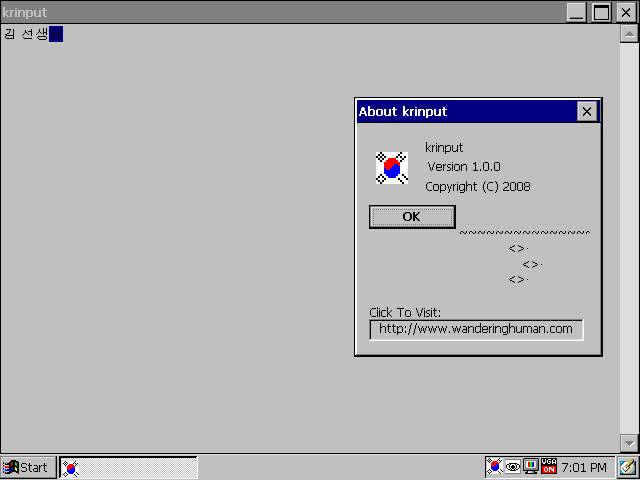
<p>This tool was developed as a stand alone application due to the fact that I was not able to easily find an override to the TranslateMessage API on Windows CE. If I was able to do that, I'd probably have let you type directly into the app you are using. Secondly, I was also unable to find a method to override or install a new IME with the developer's SDK on Windows CE 2.11. I am sure platform builder would allow it, but there's still a high likelihood that I may not be able to run that code on otherwise unaltered devices. I tried to ease the burden of this limitation of typing into a stand alone application. Two things were done to help with the usability and user experience. First, it is conveniently accessed via the task tray window near the system clock. Second, as you type the contents will be captured to the clipboard so you can easily paste into the target application that you wanted to input Korean text into.</p>

<p><A HREF="http://wanderinghuman.com/krinput/">Download it Here</A></p>

<p>This was not too difficult to build, but there's some prerequisites that you will need to do on your own that I am unable to provide, because I am releasing free I can't bear a license cost on externalities. You will need a Korean font to load to the device, I used one that I purchased in a Korean English dictionary for Pocket PC. I uninstalled the software from the Pocket PC and sits in a drawer, so I thought I'd make use of it as a single user. The spirit of the license seems reasonable that I can get use out of the font in one instance and in one place to be run by me.</p>

<p>Since the font to hold the Hangul character set can be large and the aged Handheld PC are relatively small in memory availability and most have externally expandable Compact Flash memory capabilities, I added a nice feature which lets you keep the font on the compact flash and still be registered with the Windows CE operating system. This will save a precious chunk of device storage at the expense of requiring the compact flash to be inserted when using the program.</p>

<p>After the link you can see a couple screenshots taken of the program on a Jornada 820 and a Pencentra 200 (with HPC2000 upgraded ROM).</p>]]>
      <![CDATA[<p>The UI consists of an editable field and an item that sits in the task tray next to the clock on your system. It looks like the Korean flag, or as close to one that is reasonable given the dimension constraints on the icon. There is no file I/O in this program, the intent is to have you type your message in this program and paste the resulting content into another program such as Pocket Word.</p>

<p>Let's see some screen shots of the tool in action and then describe the installation and usage instructions.</p>

<p><h3>Jornada 820</h3><br />
<IMG SRC="http://www.wanderinghuman.com/software/photos/blog/krinput_jor.png" /></p>

<p><h3>PenCentra 200 w/ HPC2000</h3><br />
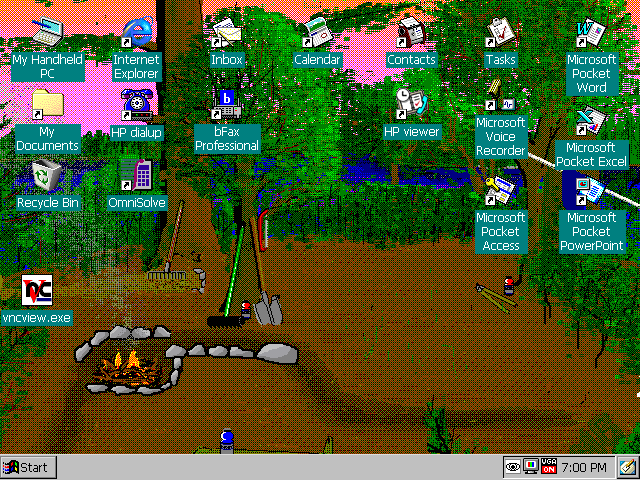
<IMG SRC="http://www.wanderinghuman.com/software/photos/blog/krinput_pct.png" /></p>

<p>Note the Korean flag icon in the system tray window, near the clock in the lower right. Also, notice that the program works with the soft keyboard on the PenCentra! This tool works in Windows as well, just was developed with portability in mind on Windows in order to speed development and debug time. Since it resulted in a completed work, this will also be provided for download. I would encourage you to use the IME facilities that Windows provides you with instead of this for the PC environments. Here's an article to describe how to get that set up on your Windows XP: <A HREF="http://wanderingadventures.blogspot.com/2006/08/setting-up-korean-on-your-computer.html">Click here</A>. There's also these Korean Hangul stickers you can stick to your keyboard until you get the hang of the positioning of Hangul characters in the keyboard layout: <A HREF="http://www.amazon.com/exec/obidos/redirect?link_code=as2&path=ASIN/B000GGOCJS&tag=wanderingadve-20&camp=1789&creative=9325">Click here</A>.</p>

<p><a id="install"></a><br />
<h2> Installation Instruction</h2></p>

<p>Go to the <A HREF="http://wanderinghuman.com/krinput/">download page</A> for downloading the zip archive package for the platform you want to use. I broke the delivery packages into a PC platform, which was tested on Windows XP. The others for HPC 2000 and HPC Pro are all bundled together. This leaves you some work in finding the appropriate executable to load to your device and which method you want to go about doing that. Later, when I have some spare time I may go back and make an installer with CAB files and such, but it looked more complex than I was hoping and I can only test one configuration since my Active Sync does not work on my Jornada.</p>

<p>To find your H/PC version, you can go to the System control panel applet (Start -> Settings -> Control Panel -> System) and choose the "System" tab. My Windows CE 2.11 device says "Microsoft Windows CE, Handheld PC Edition Version 3.0" and I refer to that as "HPCPRO". My Windows CE HPC 2000 says "Microsoft Windows for Handheld PC 2000" and I refer to that as "HPC2000". Note that down.</p>

<p>Now that you're in the general area, you will want to find the CPU type. This is in the same spot, but rather than the "System" tab it is on the "Device" tab. The info after "Processor Type" is what you want to note down. My devices are a StrongARM and a MIPS. Note yours down near where you noted the Operating System version.</p>

<p>Next step is to unpack the zip file you downloaded to where you will remember how to access it. The contents for the Windows CE zip file is broken into this heirarchy:</p>

<p>&lt;Operating System&gt;\&lt;CPU&gt;\&lt;Executable&gt;</p>

<p>Where the Operating System you noted above, the CPU you noted above, and the executable being krinput.exe and a configuration file named krinput.txt. Using your storage card, IR, Serial Link, FTP, Active Sync, File Explorer, etc, you will want to copy these two files for your system's OS and CPU to where it makes sense for you to run the program from. Mine was in \Storage Card\Program Files\krinput\krinput.exe and \Storage Card\Program Files\krinput\krinput.txt. Note that the configuration file must be loaded in the same directory as the executable file.</p>

<p>Optionally, you could create a start menu item or desktop item by right clicking and choosing copy on the executable and then navigating to "\Windows\Programs" and choosing to Paste A Shortcut to appear on the "Start Menu". If you needed it on the desktop, then you can do the same thing in "\Windows\Desktop". Windows PC steps are similar, a web search will be able to give you massive quantities of tutorials for that.</p>

<p>Also, you will need a Korean font to make sense of any of the characters on the screen. Where you get that is up to you, I don't have a good pointer to give here due to my circumstance. </p>

<p>With the package installed, there is one more thing to do to ensure it is set up as you wish. First open the krinput.txt file in a text editor like notepad. There are three fields there that can be edited to change how the program executes. These are loaded when the program is loaded, so if you make any changes you will need to restart krinput.exe for these changes to take effect.</p>

<p>The three configurable items are: AddFont, AddFontPath, UseFontFaceName. It is best to have all these present and on their own line and with an = sign separating the field from the data. The data must end on a carriage return and line feed pair. That happens when you press the return or enter key in notepad. I will give an example of my initial configuration file that I used on my Jornada setup.</p>

<p><h3>AddFont</h3></p>

<p>A value of 0 means the program will not try to add the font to the Windows system fonts. You would leave this at zero if you have either installed a Korean font already or have placed your Korean font in the \Windows or \Windows\Fonts directory.</p>

<p>After registering you can make it zero to save a few steps of code, but that's not required. To initially register, ensure the value is the numerical number 1.</p>

<p><h3>AddFontPath</h3></p>

<p>This will only be used when AddFont has a setting of 1. This is the path to the font that you want to register in the Windows system. You can seem my example in the section below</p>

<p><h3>UseFontFaceName</h3></p>

<p>This is a very required entry to be give exactly the proper characters of how Windows recongises this font. After you have installed a font, you can then take a look in Pocket word or any other program that has a font selection box and note the name and include any spaces in case it uses multiple words.</p>

<p><h3>My Example krinput.txt</h3></p>

<p>AddFont           = 1<br />
AddFontPath       = \Storage Card\fonts\gulim.ttf<br />
UseFontFaceName   = Gulim new</p>

<p>Note, I was adding a font that I put on my storage card called gulim.ttf and located in a fonts folder that I created on the card. This font exports a font face name of "Gulim new", so that is what is given there. You can find out that name in Pocket Word as described above or even by opening the font on a Windows PC and looking at the top line.</p>

<p><a id="usage"></a><br />
<h2>Operating Usage Instruction</h2></p>

<p>On the device, double click to launch the program. You will see an edit field that you can type into and the Tray Icon near the system clock. The contents that you have typed will be stored on the clipboard as you type, so you can easily switch task to where you want to place the Korean text and paste it. This takes out some steps of highlighting the text and manually copying it to the clipboard. If you click the close button, the app will be minimized to the Task Tray instead for easier access. If you need to close it you can do so with the menu on the Task Tray icon. In Windows XP you can right click on the icon in the Task Tray to get to the menu. In Windows CE you will have to double click to see the menu.</p>

<p>This menu has three items: Open, About, Exit.</p>

<p><h3>Open</h3></p>

<p>Selecting this item will bring the window back to the foreground, so you can begin or resume typing your Korean text.</p>

<p><br />
<h3>About</h3></p>

<p>Selecting this will show a window with the information about this program, such as the name and version with a clickable link back to this website.</p>

<p><h3>Exit</h3></p>

<p>This exits the program, since there is no other UI available to close the program.<br />
</p>]]>
    </content>
  </entry>
  <entry>
    <title>Screen Capture for Windows CE H/PC</title>
    <link rel="alternate" type="text/html" href="http://www.wanderinghuman.com/blog/archives/000114.html" />
    <modified>2008-04-20T18:51:05Z</modified>
    <issued>2008-04-21T03:51:05+08:00</issued>
    <id>tag:www.wanderinghuman.com,2008:/blog/1.114</id>
    <created>2008-04-20T18:51:05Z</created>
    <summary type="text/plain"><![CDATA[ &nbsp;&nbsp;&nbsp;A tool created out of necessity. I was trying to create a screen shot or screen capture for the next post and had a bad color issue, where some greys turned into purple and pink somehow. Tried another one...]]></summary>
    <author>
      <name>jmiller099</name>
      <url>http://www.wanderinghuman.com</url>
      <email>jmiller099@hotmail.com</email>
    </author>
    <dc:subject>Software</dc:subject>
    <content type="text/html" mode="escaped" xml:lang="en" xml:base="http://www.wanderinghuman.com/blog/">
      <![CDATA[<p><IMG SRC="http://www.wanderinghuman.com/software/photos/blog/i-ScrnGrab.png" /> &nbsp;&nbsp;&nbsp;A tool created out of necessity. I was trying to create a screen shot or screen capture for the next post and had a bad color issue, where some greys turned into purple and pink somehow. Tried another one I could find online and it put extra data info into the palette range, which severely impacted coloring. Rather than spend more time in the web search and trial and error to find one for this increasingly de-popularized platform for free, I thought it might be worth it to write one on my own.</p>

<p><A HREF="http://wanderinghuman.com/ScrnGrab/">Download it Here</A></p>

<p><br />
The first steps towards that effort were fruitful and took a very short time. I was using a PC development and testing environment, but when I put it through the Windows CE compiler I came across unsupported API. Then I did it a different way, but still when I hit the Windows CE compiler I had some bad links for unsupported API. Who is to say they make this stuff easy?</p>

<p>After hacking through all I could think to do, I was able to get a functional program that I could test successfully in 16bit and 32bit on the desktop PC under XP and in 8bit on Windows CE 2.11 and Windows CE 3.0 (HPC Pro and HPC 20000 versions). </p>

<p>After the link you can see a couple screenshots taken with the program and further instructions for use.</p>]]>
      <![CDATA[<p>In all these versions, there is no window to speak of, in the traditional sense (saved a lot of code and feature creep by doing it that way). The UI consists of an item that sits in the task tray next to the clock on your system. It looks like an eye inside a window, or as close to one that is reasonable given my not existing icon making skill. The working directory is the directory that you have installed the program in. That's where the captures go, so you may want to ensure a lot of storage since bitmaps get big (640x480 screen @ 8 bits per pixel makes 300 kilobyte files).</p>

<p>Since I prefer to use storage cards to hold as much data and programs as possible due to the general limits of on device storage in theproduct tier. I locate the program in 'Storage Card' and 'Storage Card2' on my Windows CE devices. Usually I map the storage cards to look like a main drive by using the heuristics Microsoft had given to us. Basically, I make a "My Documents" and a "Program Files". In "Program Files", I create a folder for the program and locate it there. Unfortunately, it was easier to use executable directory for outputting the capture than to check if a "My Documents" folder exists. I copy them there through activesync or directly onto the storage card with a card reader depending on what is on hand and near me. Enough about me, let's take a look at the installation and usage intstructions so you can make screen shots like the following:</p>

<p><h3>Jornada 820</h3><br />
<IMG SRC="http://www.wanderinghuman.com/software/photos/blog/ScrnGrab_jor.png" /></p>

<p><h3>PenCentra 200 w/ HPC2000</h3><br />
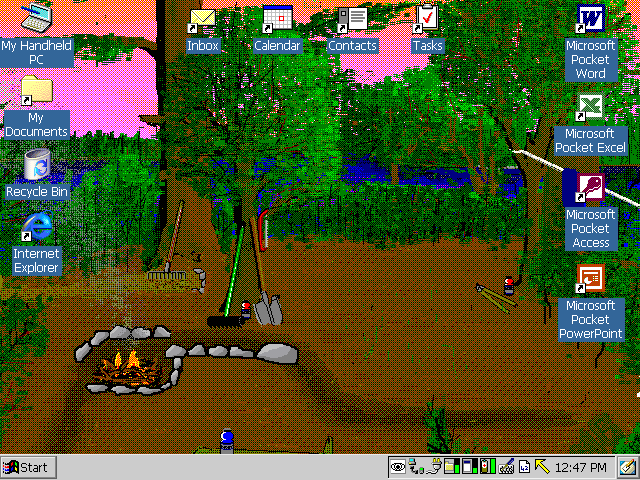
<IMG SRC="http://www.wanderinghuman.com/software/photos/blog/ScrnGrab_pct.png" /></p>

<p>Note the eye icon in the system tray window, near the clock in the lower right.</p>

<p><a id="install"></a><br />
<h2> Installation Instruction</h2></p>

<p>Go to the <A HREF="http://wanderinghuman.com/ScrnGrab/">download page</A> for downloading the zip archive package for the platform you want to use. I broke the delivery packages into a PC platform, which was tested on Windows XP using 32bit and 16bit(256 colors) color depths. The others for HPC 2000 and HPC Pro are all bundled together. This leaves you some work in finding the appropriate executable to load to your device and which method you want to go about doing that. Later, when I have some spare time I may go back and make an installer with CAB files and such, but it looked a bit more complex than I was hoping for and I can only reasonably test one configuration since my Active Sync does not work on my Jornada.</p>

<p>To find your H/PC version, you can go to the System control panel applet (Start -> Settings -> Control Panel -> System) and choose the "System" tab. My Windows CE 2.11 device says "Microsoft Windows CE, Handheld PC Edition Version 3.0" and I refer to that as "HPCPRO". My Windows CE HPC 2000 says "Microsoft Windows for Handheld PC 2000" and I refer to that as "HPC2000". Note that down.</p>

<p>Now that you're in the general area, you will want to find the CPU type. This is in the same spot, but rather than the "System" tab it is on the "Device" tab. The info after "Processor Type" is what you want to note down. My devices are a StrongARM and a MIPS. Note yours down near where you noted the Operating System version.</p>

<p>Next step is to unpack the zip file you downloaded to where you will remember how to access it. The contents for the Windows CE zip file is broken into this heirarchy:</p>

<p>&lt;Operating System&gt;\&lt;CPU&gt;\&lt;Executable&gt;</p>

<p>Where the Operating System you noted above, the CPU you noted above, and the executable being ScrnGrab.exe. Using your storage card, IR, Serial Link, FTP, Active Sync, File Explorer, etc, you will want to copy the executable you found to where it makes sense for you to run the program from and where the screen captures will be stored. Mine was in \Storage Card\Program Files\ScrnGrab\ScrnGrab.exe.</p>

<p>Optionally, you could create a start menu item or desktop item by right clicking and choosing copy on the executable and then navigating to "\Windows\Programs" and choosing to Paste A Shortcut to appear on the "Start Menu". If you needed it on the desktop, then you can do the same thing in "\Windows\Desktop". Windows PC steps are similar, a web search will be able to give you massive quantities of tutorials for that.</p>

<p><a id="usage"></a><br />
<h2>Operating Usage Instruction</h2></p>

<p>On the device, double click to launch the program. Nothing will pop up on your main screen area due to the program consisting of only a Tray Icon user interface. To interact with it, locate the icon you see in the beginning of this post in your Tray Window near the system clock. In Windows XP you can right click on it to get to the menu. In Windows CE you will have to double click to see the menu.</p>

<p>This menu has three items: Capture, About, Exit.</p>

<p><h3>Capture</h3></p>

<p>Selecting this item will begin the screen capture process. It will capture the whole screen and leave it in bitmap format expecting you to bring it to a screen editor at a later time for post processing such as cropping and compressing to GIF or PNG where needed. This bitmap will be written in the same directory as where the executable was launched from and will carry your local data and time as the filename along these lines as I type this: 20080420_114222_000.bmp. Year, Month, Day, Hour, Minute, Second, Milliseconds, and lastly the '.bmp' extension. When the operation completes you will hear and audible beep and the file will be created.</p>

<p><br />
<h3>About</h3></p>

<p>Selecting this will show a window with the information about this program, such as the name and version with a clickable link back to this website.</p>

<p><h3>Exit</h3></p>

<p>This exits the program, since there is no other UI available to close the program.<br />
</p>]]>
    </content>
  </entry>
  <entry>
    <title>Fun with Copper Pt. II</title>
    <link rel="alternate" type="text/html" href="http://www.wanderinghuman.com/blog/archives/000113.html" />
    <modified>2008-04-13T22:02:00Z</modified>
    <issued>2008-04-14T07:02:00+08:00</issued>
    <id>tag:www.wanderinghuman.com,2008:/blog/1.113</id>
    <created>2008-04-13T22:02:00Z</created>
    <summary type="text/plain">More fun with copper pennies. This time involved an engraver (as seen on TV). After dulling the engraver practicing on glass and not being able to carve more into the empty beer bottle my interest shifted to a penny. I...</summary>
    <author>
      <name>jmiller099</name>
      <url>http://www.wanderinghuman.com</url>
      <email>jmiller099@hotmail.com</email>
    </author>
    <dc:subject>Living</dc:subject>
    <content type="text/html" mode="escaped" xml:lang="en" xml:base="http://www.wanderinghuman.com/blog/">
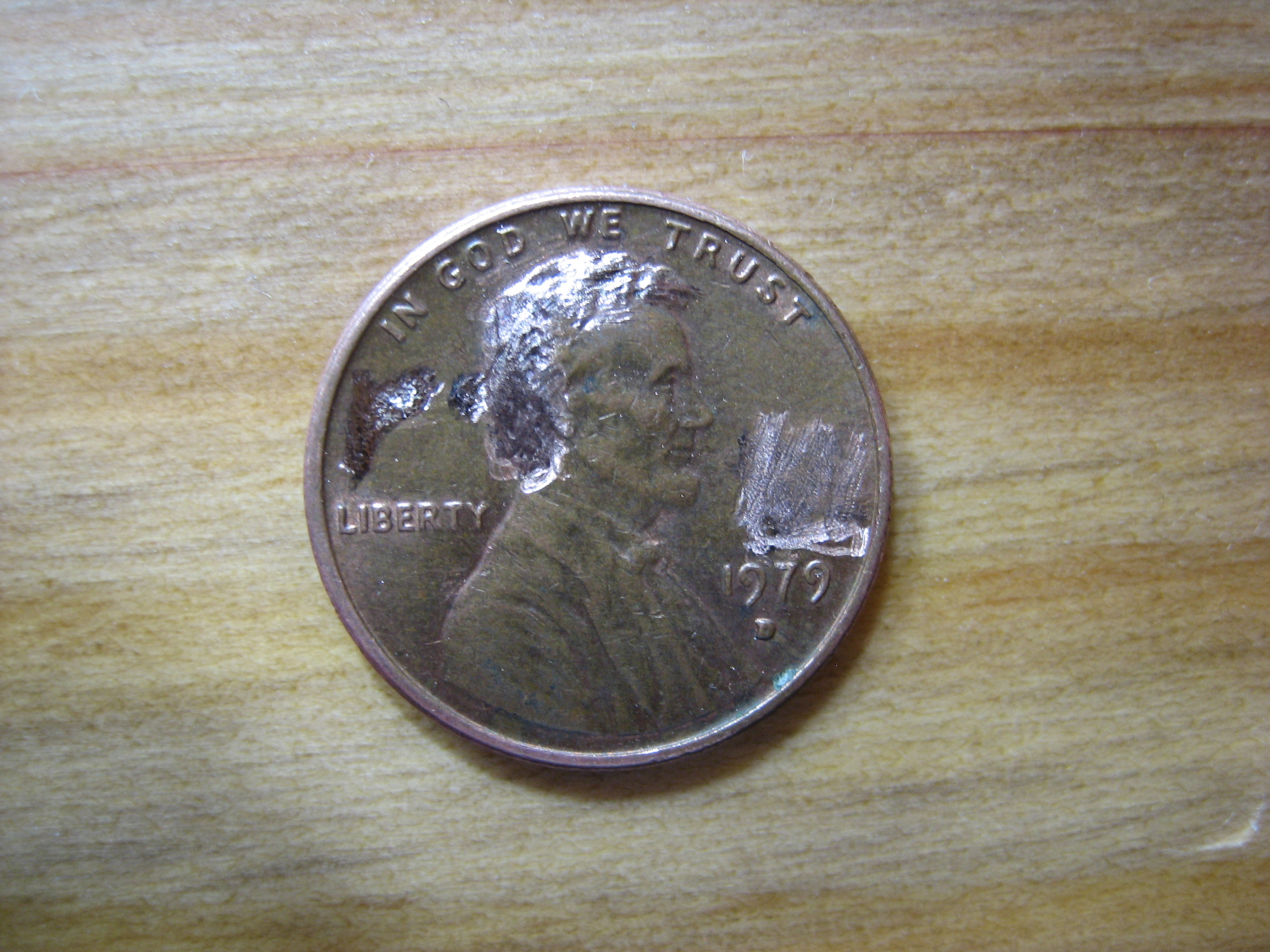
      <![CDATA[<p>More fun with copper pennies. This time involved an engraver (as seen on TV). After dulling the engraver practicing on glass and not being able to carve more into the empty beer bottle my interest shifted to a penny. I figured that the engraver had enough life to scratch metal and it worked. </p>

<p>Now the tip is too dull to do anything more, so luckily it comes with two. Doing a web search proved there's no ordering replacement tips.</p>

<p>Anyway here is the result! </p>

<p><a href="http://www.wanderinghuman.com/living/photos/blog/linc.jpg"><img src="http://www.wanderinghuman.com/living/photos/blog/tlinc.jpg" /></a></p>]]>
      
    </content>
  </entry>
  <entry>
    <title>Hardware: USB On/Off switch</title>
    <link rel="alternate" type="text/html" href="http://www.wanderinghuman.com/blog/archives/000112.html" />
    <modified>2008-03-12T04:25:05Z</modified>
    <issued>2008-03-12T13:25:05+08:00</issued>
    <id>tag:www.wanderinghuman.com,2008:/blog/1.112</id>
    <created>2008-03-12T04:25:05Z</created>
    <summary type="text/plain">Since I am now doing some developments based on the top of the giants of Rockbox founders. I had recently mentioned here the birth of one tool to help with something I am porting to run on my mp3 player....</summary>
    <author>
      <name>jmiller099</name>
      <url>http://www.wanderinghuman.com</url>
      <email>jmiller099@hotmail.com</email>
    </author>
    <dc:subject>Living</dc:subject>
    <content type="text/html" mode="escaped" xml:lang="en" xml:base="http://www.wanderinghuman.com/blog/">
      <![CDATA[<p>Since I am now doing some developments based on the top of the giants of <A HREF="http://www.rockbox.org">Rockbox founders</A>. I had recently mentioned <A HREF="http://www.wanderinghuman.com/blog/archives/000105.html">here</A> the birth of one tool to help with something I am porting to run on my mp3 player. Well, going through the porting process was causing a lot of plug/unplug for software loads and resets. I didn't want to wear out or break the pads on either the laptop, the Sansa cable, or the Sansa itself. Rather than daisy chaining a lot of USB cables, I decided I needed to build a switch.</p>

<p>The switch allows me to remove a USB peripheral without removing any physical connections. This was the final product:</p>

<p><br />
<A HREF="http://www.wanderinghuman.com/living/photos/blog/USBSwitch_Switch.jpg"><IMG SRC="http://www.wanderinghuman.com/living/photos/blog/tUSBSwitch_Switch.jpg" /> </A><br />
click for full size image.</p>

<p>Click the next link to see more background info and photos.<br />
</p>]]>
      <![CDATA[<p>The parts list:<br />
1 Altoids Gum case<br />
1 2-pack of Radio Shack Slide Switch (SPDT Submini part: 275-409)<br />
1 USB Male connector<br />
1 USB Female connector<br />
1 Roll of Kapton Tape<br />
1 Stick of hot glue<br />
1 Hot Glue Gun<br />
1 Silver bearing solder (really thin, also at Radio Shack)<br />
1 12 Watt Weller soldering Iron<br />
1 Metal Cutter<br />
1 Multimeter</p>

<p>First step was to attach the Ground, USB D+, USB D- wires to each other on the male and female connectors. I soldered these points and wrapped them with the Kapton tape. After doing each individual point, I wrapped the wad of three wires together to bind them together and ensured there were no shorts with my multimeter.</p>

<p>The next step was attaching the power of the Male USB to the middle pin on the slide switch with the soldering iron. Then I did likewise with the Female USB and attached to the end pin of the slide switch. I tested continuity and lack of shorts on all the lines once again, then I switched the switch to the off position and tested to ensure no continuity existed on the power line. Success!</p>

<p>This is what that all looks like:<br />
<A HREF="http://www.wanderinghuman.com/living/photos/blog/USBSwitch_Lines1.jpg"><IMG SRC="http://www.wanderinghuman.com/living/photos/blog/tUSBSwitch_Lines1.JPG" /> </A><br />
click for full size image.</p>

<p>Another view:<br />
<A HREF="http://www.wanderinghuman.com/living/photos/blog/USBSwitch_Lines2.jpg"><IMG SRC="http://www.wanderinghuman.com/living/photos/blog/tUSBSwitch_Lines2.JPG" /> </A><br />
click for full size image.</p>

<p>I wrapped the power connectors in kapton tape. I tested the above rig with the laptop and a USB bluetooth dongle, since I didn't fancy potential of destroying more expensive components or flash drives with data not yet backed up. It worked well!</p>

<p>Then I went ahead and measured the parts and used the metal cutters to cut the altoids gum case to place the switch, USB male and USB female. I bent the sharp metal edges down and fitted the pieces and ensured there were no shorts since this case is metal. After that it was hot glue time to keep things in place. Here is the finished project, not too sexy looking but it gets the job done.</p>

<p>Top view:<br />
<A HREF="http://www.wanderinghuman.com/living/photos/blog/USBSwitch_Top.jpg"><IMG SRC="http://www.wanderinghuman.com/living/photos/blog/tUSBSwitch_Top.JPG" /> </A><br />
click for full size image.</p>

<p>Side view (Male Connector):<br />
<A HREF="http://www.wanderinghuman.com/living/photos/blog/USBSwitch_Male.jpg"><IMG SRC="http://www.wanderinghuman.com/living/photos/blog/tUSBSwitch_Male.jpg" /> </A><br />
click for full size image.</p>

<p>Other Side view (Female Connector):<br />
<A HREF="http://www.wanderinghuman.com/living/photos/blog/USBSwitch_Female.jpg"><IMG SRC="http://www.wanderinghuman.com/living/photos/blog/tUSBSwitch_Female.jpg" /> </A><br />
click for full size image.</p>]]>
    </content>
  </entry>
  <entry>
    <title>Update to BMPToBDF (bmp2bdf) Tool v1.0.1</title>
    <link rel="alternate" type="text/html" href="http://www.wanderinghuman.com/blog/archives/000105.html" />
    <modified>2008-03-05T17:30:09Z</modified>
    <issued>2008-03-06T01:30:09+08:00</issued>
    <id>tag:www.wanderinghuman.com,2008:/blog/1.105</id>
    <created>2008-03-05T17:30:09Z</created>
    <summary type="text/plain"><![CDATA[ &nbsp;&nbsp;&nbsp;Introduction to the BMPToBDF tool. This is a command line tool (useful for calling from command prompt or from makefile), a windows application, and a DLL that you can incorporate into your project for conversion of BMP into BDF....]]></summary>
    <author>
      <name>jmiller099</name>
      <url>http://www.wanderinghuman.com</url>
      <email>jmiller099@hotmail.com</email>
    </author>
    <dc:subject>Software</dc:subject>
    <content type="text/html" mode="escaped" xml:lang="en" xml:base="http://www.wanderinghuman.com/blog/">
      <![CDATA[<p><IMG SRC="http://www.wanderinghuman.com/software/photos/blog/i-wbmptobdf.png" /> &nbsp;&nbsp;&nbsp;Introduction to the BMPToBDF tool. This is a command line tool (useful for calling from command prompt or from makefile), a windows application, and a DLL that you can incorporate into your project for conversion of BMP into BDF. </p>

<p><A HREF="http://wanderinghuman.com/bmp2bdf/">Download it Here</A></p>

<p>Changes since v1.0<br />
Feature Additions<br />
- Add support for all paletted bitmap depths (1,2,4, and 8)bpp<br />
- If generating a font with a space character, there was no way to do that well. Now it can be specified by including in the range of the start value and having enough bitmap glyphs that can encompass the value 0x20 or 32. Input controllable width of this space character.</p>

<p>Bug Fixes<br />
- Fixed BDF Parameter DWIDTH, it was lacking a 2nd value <br />
- 1st pixel from bitmap was lost, due to 0 init and check<br />
- Overall BDF Parameter BBX height was not accurate. Base on overall height, not tallest char.<br />
- Fix BDF Parameter PROPERTIES:FONT_ASCENT, related to the above.<br />
- BDF Parameter ENDFONT was missing. Added in now.<br />
- Fix problem when black is not the 1st palette entry of the bitmap.</p>

<p><br />
BMP is a windows bitmap, you can find these all over the place. BDF is a bitmapped font file format, commonly used in UNIX/LINUX XWindows, but also used in the Rockbox environment. Scalable fonts logic occupies a lot of space and processing, so bitmapped fonts are common in the world of embedded devices. Maybe you have some other use for BDF and for this tool. </p>

<p><IMG SRC="http://www.wanderinghuman.com/software/photos/blog/wbmptobdf101.png" /></p>]]>
      <![CDATA[<p>More info after the link.</p>

<p>The usage instructions for the windows application follow below. The command line application acts in much the same manner and you can download the package to see the instructions for its usage.</p>

<p>Since there are two executables there are two separate ways to describe ultimate usage, however they share a common theme by achieving the same functionality and this section aims to cover that. For specifics on either the windows application or the windows console application, see the relevant section below. </p>

<p>   The input BMP is a Windows BMP format. It must be a a paletted bitmap at 1bpp, 2bpp, 4bpp, or 8bpp bit depths. It must have the relevant and true bitmap header information, a color palette containing at least one black entry, and the pixel bits.</p>

<p>Within the pixel bits, are the pixels that make up glyphs. Within a single glyph there are representations of the color black and non-black. There is no distinguishing between non-black pixels, they are all treated as data that is not to be drawn. Black pixels indicate a point in the glyph that is to be drawn.</p>

<p>The glyphs are all arranged with a spacing between them of non-black pixels and occupy only one row. They must be adjacent and the value of the next glyph must be the value of the previous glyph plus one. That is, you would arrange the character A to the left of the character B with some spacing between the end of the A and beginning of the B.</p>

<p>   Special case, the space character should not be represented in the bitmap since it will be overlooked as an empty gap. Use the start character parameter in conjunction with the quantity of glyphs you need to ensure that there is a space character accounted for. For instance, your start value may be 0x20 or 32 and if you have more than one glyph it will insert a space character for you. The width of the space character is automatically calibrated to be the same width as the <br />
fattest glyph in the supplied bitmap. If you want to override this behavior then you need to specify the number of pixels for the space character's sizing in the input parameters. If it is a fixed width font, then the parameter is also ignored.</p>

<p>To create this bitmap, you can use your favorite image editor. From MS Paint (free in windows) to more elaborate tools such as Adobe Photoshop, just ensure you're working with a paletted bitmap. A visible representation of what the bitmap should look like is given as an ascii representation below. It makes sense only when viewed in a fixed width font. A # represents a filled pixel and a blank <br />
space represents a non-filled space. Above the pixels is a ruler guide and must not be used in your actual bitmap. It is for simple counting of columns in this illustration.</p>

<pre>
0123456789012345
   ##   ######  
  # #         # 
    #         # 
    #         # 
    #    #####  
    #   #       
    #   #       
 ######  ###### 
</pre>

<p>That's a two glyph bitmap pictured above. The value fed to the starting char would be Decimal 49 or the ascii representation of the character '1'. Other parameters are also required for describing your bitmap that don't fit well within the constraints of the bitmap that will be explained as follows.</p>

<p>It is much easier to describe with a picture. Let's take the letters A and g to illustrate the point. A # represents a filled pixel, or color of black in the input bitmap. A blank spot represents a blank or a non-black pixel on the bitmap. </p>

<pre>
              1 ----|    ----- 2
                    |    |
               ---------------------
               |    #              |------------------------------
               |   ###             |                              |
               |   # #       ### # |                              |
               |   #  #     #   ## |                              |
            3 -|  #   #    #     # |- 5                           |- 8 
               |  #    #   #     # |                              | 
               | #######   #     # |                              |
               | #      #  #     # |                              |
               | #      #   #   ## |                              |
               |#        #  #### # |------------------------------
               |                 # |--
               |                #  |  |- 6
             --|            ####   |--
             | ---------------------
      |-------  |        | |      |
      |          --------   ------
      4             |         |
                  width      width2
                  |               |
                   ---------------
                          |
                          7
</pre>

<p>1. # of leading blank spaces above drawing pixels (shown 0)<br />
2. Spaces between glyphs. In this case if treated 1 or more this will be treated as 1 glyph since there is only 1 space. Realistically, you'd put 0 here.<br />
3. # of leading blank spaces before drawing pixels of next glyph (shown 0)<br />
4. # of trailing blank spaces after drawing pixels. Basically pad below character<br />
 before next line starts.<br />
5. # of trailing blank spaces after drawing pixels before starting the next<br />
 character (shown 1)<br />
6. Number of pixels to use for descent from the baseline, or characters that can <br />
drop below the horizontal line of origin. (shown 3)<br />
7. Whether to generate Fixed Width font. That is, if the characters do not occupy<br />
 the same width of a bounding rectangle, padding will be inserted so they do.<br />
8. Ascent. This is calculated by the tallest character and the descent given. This <br />
is not an input parameter to these programs.</p>

<p><b>wbmptobdf.exe</b></p>

<p>This is the windows tool to process a BMP to create a BDF file. The high level usage instructions are to open a compliant BMP File as described in the Usage section and fill in or select the options that you wish to be taken into the BDF File's logic and then click the process button.</p>

<p>The following are the entry fields and they are mapped to the entries as given by the description below the graphic of Ag in the Usage section.</p>

<p>Input BMP File Name[...]<br />
You can type the path or click the "..." to browse to the path of the input BMP File Name.</p>

<p>Output BDF File Name<br />
You can type the path and filename for the output BDF File. Or you can leave this blank and the path from the BMP File Name will be used as well as the base of the file name with the BDF replacing BMP.</p>

<p>Font Name<br />
You can type the name that is set as the FONT parameter of the output BDF File.</p>

<p>1st Glyph Value<br />
Corresponds to the 16 bit value of the first glyph in the bitmap. Can be entered as hexidecimal or decimal format.</p>

<p>Allowed Vertical Blank Pixels In Glyph<br />
Corresponds to #2 in the description below Ag in the usage section.</p>

<p>Space Char Pixel Size (if needed)<br />
No corresponding field in the image above. This is the number of pixels to use if a space character is within the glyph range provided for that space character. If it is at zero, then the fattest glyph will be used. If the font is fixed width then the actual fixed width will be used.</p>

<p>Descent Pixels<br />
Corresponds to #6 in the description below Ag in the usage section.</p>

<p>Fixed Width Font<br />
When checked will generate a fixed width font, when not it will use the actual character spacing of the bitmap characters. Corresponds to #7 in the description below Ag in the usage section.</p>

<p>Upper Blank Pixels<br />
Since the BMP file grabs the limits of each glyph, some padding may be desired. Setting this will put that number of padding pixels above a glyph in the BDF. Corresponds to #1 in the description below Ag in the usage section.</p>

<p>Leading Blank Pixels<br />
Since the BMP file grabs the limits of each glyph, some padding may be desired. Setting this will put that number of padding pixels before a glyph in the BDF. Corresponds to #3 in the description below Ag in the usage section.</p>

<p>Trailing Blank Pixels<br />
Since the BMP file grabs the limits of each glyph, some padding may be desired. Setting this will put that number of padding pixels after a glyph in the BDF. Corresponds to #5 in the description below Ag in the usage section.</p>

<p>Lower Blank Pixels<br />
Since the BMP file grabs the limits of each glyph, some padding may be desired. Setting this will put that number of padding pixels below a glyph in the BDF. Corresponds to #4 in the description below Ag in the usage section.<br />
</p>]]>
    </content>
  </entry>
  <entry>
    <title>Birth of BMPToBDF (bmp2bdf) Tool</title>
    <link rel="alternate" type="text/html" href="http://www.wanderinghuman.com/blog/archives/000104.html" />
    <modified>2008-03-04T05:12:20Z</modified>
    <issued>2008-03-04T13:12:20+08:00</issued>
    <id>tag:www.wanderinghuman.com,2008:/blog/1.104</id>
    <created>2008-03-04T05:12:20Z</created>
    <summary type="text/plain"><![CDATA[ &nbsp;&nbsp;&nbsp;Introduction to the BMPToBDF tool. This is a command line tool (useful for calling from command prompt or from makefile), a windows application, and a DLL that you can incorporate into your project for conversion of BMP into BDF....]]></summary>
    <author>
      <name>jmiller099</name>
      <url>http://www.wanderinghuman.com</url>
      <email>jmiller099@hotmail.com</email>
    </author>
    <dc:subject>Software</dc:subject>
    <content type="text/html" mode="escaped" xml:lang="en" xml:base="http://www.wanderinghuman.com/blog/">
      <![CDATA[<p><IMG SRC="http://www.wanderinghuman.com/software/photos/blog/i-wbmptobdf.png" /> &nbsp;&nbsp;&nbsp;Introduction to the BMPToBDF tool. This is a command line tool (useful for calling from command prompt or from makefile), a windows application, and a DLL that you can incorporate into your project for conversion of BMP into BDF. </p>

<p><A HREF="http://wanderinghuman.com/bmp2bdf/">Download it Here</A></p>

<p>BMP is a windows bitmap, you can find these all over the place. BDF is a bitmapped font file format, commonly used in UNIX/LINUX XWindows, but also used in the Rockbox environment. Scalable fonts logic occupies a lot of space and processing, so bitmapped fonts are common in the world of embedded devices. Maybe you have some other use for BDF and for this tool. </p>

<p>Rockbox is an open source firmware software replacement to many common MP3 players out on the market. Firmware is the software that runs on these devices to show you menus, allow you to interact by play/pause/next/back/etc. Usually these hardware manufacturers have a closed end system; that is, they do not allow you to run your own software on their platforms. </p>

<p>Chumby is an example of those who allow you to build your own software for the platform. In the closed case, people take it upon themselves to reverse engineer devices and provide for alternate or enhanced functionality to those devices. Rockbox does for MP3 players, CHDK does for some Canon digital camera, and there's more if you search around the web for open source firmware.</p>

<p>Back to what we have at hand. I am playing around with the Rockbox SDK and found a need for a font that was lacking from the fonts package that they distribute. Basically, needed a small font since my Sansa c250 screen is small with hangul and jamo characters. In the build process they change BDF files into another font format. This meant I needed a BDF input for processing the font I wanted to see on my Rockbox build. This tool allowed me to create that font with MS Paint and generate a BDF which finally generated the font that goes on my Sansa c250. Yea, I know I generally spread interest from thing to thing in a fairly rapid fire. Eventually some pieces may tie together!</p>

<p><IMG SRC="http://www.wanderinghuman.com/software/photos/blog/wbmptobdf.png" /></p>

<p>More info after the link.<br />
</p>]]>
      <![CDATA[<p>The usage instructions for the windows application follow below. The command line application acts in much the same manner and you can download the package to see the instructions for its usage.</p>

<p>Since there are two executables there are two separate ways to describe ultimate usage, however they share a common theme by achieving the same functionality and this section aims to cover that. For specifics on either the windows application or the windows console application, see the relevant section below. </p>

<p>The input BMP is a Windows BMP format. For this version it must be a monochrome 1 bit per pixel paletted bitmap. It must have the relevant and true bitmap header information, a color palette containing at least one black entry, and the pixel bits.</p>

<p>Within the pixel bits, are the pixels that make up glyphs. Within a single glyph there are representations of the color black and non-black. There is no distinguishing between non-black pixels, they are all treated as data that is not to be drawn. Black pixels indicate a point in the glyph that is to be drawn.</p>

<p>The glyphs are all arranged with a spacing between them of non-black pixels and occupy only one row. They must be adjacent and the value of the next glyph must be the value of the previous glyph plus one. That is, you would arrange the character A to the left of the character B with some spacing between the end of the A and beginning of the B.</p>

<p>To create this bitmap, you can use your favorite image editor. From MS Paint (free in windows) to more elaborate tools such as Adobe Photoshop, just ensure you're working with monochrome or 1bpp data. A visible representation of what the bitmap should look like is given as an ascii representation below. It makes sense only when viewed in a fixed width font. A # represents a filled pixel and a blank <br />
space represents a non-filled space. Above the pixels is a ruler guide and must not be used in your actual bitmap. It is for simple counting of columns in this illustration.</p>

<pre>
0123456789012345
   ##   ######  
  # #         # 
    #         # 
    #         # 
    #    #####  
    #   #       
    #   #       
 ######  ###### 
</pre>

<p>That's a two glyph bitmap pictured above. The value fed to the starting char would be Decimal 49 or the ascii representation of the character '1'. Other parameters are also required for describing your bitmap that don't fit well within the constraints of the bitmap that will be explained as follows.</p>

<p>It is much easier to describe with a picture. Let's take the letters A and g to illustrate the point. A # represents a filled pixel, or color of black in the input bitmap. A blank spot represents a blank or a non-black pixel on the bitmap. </p>

<pre>
              1 ----|    ----- 2
                    |    |
               ---------------------
               |    #              |------------------------------
               |   ###             |                              |
               |   # #       ### # |                              |
               |   #  #     #   ## |                              |
            3 -|  #   #    #     # |- 5                           |- 8 
               |  #    #   #     # |                              | 
               | #######   #     # |                              |
               | #      #  #     # |                              |
               | #      #   #   ## |                              |
               |#        #  #### # |------------------------------
               |                 # |--
               |                #  |  |- 6
             --|            ####   |--
             | ---------------------
      |-------  |        | |      |
      |          --------   ------
      4             |         |
                  width      width2
                  |               |
                   ---------------
                          |
                          7
</pre>

<p>1. # of leading blank spaces above drawing pixels (shown 0)<br />
2. Spaces between glyphs. In this case if treated 1 or more this will be treated as 1 glyph since there is only 1 space. Realistically, you'd put 0 here.<br />
3. # of leading blank spaces before drawing pixels of next glyph (shown 0)<br />
4. # of trailing blank spaces after drawing pixels. Basically pad below character<br />
 before next line starts.<br />
5. # of trailing blank spaces after drawing pixels before starting the next<br />
 character (shown 1)<br />
6. Number of pixels to use for descent from the baseline, or characters that can <br />
drop below the horizontal line of origin. (shown 3)<br />
7. Whether to generate Fixed Width font. That is, if the characters do not occupy<br />
 the same width of a bounding rectangle, padding will be inserted so they do.<br />
8. Ascent. This is calculated by the tallest character and the descent given. This <br />
is not an input parameter to these programs.</p>

<p><b>wbmptobdf.exe</b></p>

<p>This is the windows tool to process a BMP to create a BDF file. The high level usage instructions are to open a compliant BMP File as described in the Usage section and fill in or select the options that you wish to be taken into the BDF File's logic and then click the process button.</p>

<p>The following are the entry fields and they are mapped to the entries as given by the description below the graphic of Ag in the Usage section.</p>

<p>Input BMP File Name[...]<br />
You can type the path or click the "..." to browse to the path of the input BMP File Name.</p>

<p>Output BDF File Name<br />
You can type the path and filename for the output BDF File. Or you can leave this blank and the path from the BMP File Name will be used as well as the base of the file name with the BDF replacing BMP.</p>

<p>Font Name<br />
You can type the name that is set as the FONT parameter of the output BDF File.</p>

<p>1st Glyph Value<br />
Corresponds to the 16 bit value of the first glyph in the bitmap. Can be entered as hexidecimal or decimal format.</p>

<p>Allowable Blank Pixels in Glyph<br />
Corresponds to #2 in the description below Ag in the usage section.</p>

<p>Descent Pixels<br />
Corresponds to #6 in the description below Ag in the usage section.</p>

<p>Fixed Width Font<br />
When checked will generate a fixed width font, when not it will use the actual character spacing of the bitmap characters. Corresponds to #7 in the description below Ag in the usage section.</p>

<p>Upper Blank Pixels<br />
Since the BMP file grabs the limits of each glyph, some padding may be desired. Setting this will put that number of padding pixels above a glyph in the BDF. Corresponds to #1 in the description below Ag in the usage section.</p>

<p>Leading Blank Pixels<br />
Since the BMP file grabs the limits of each glyph, some padding may be desired. Setting this will put that number of padding pixels before a glyph in the BDF. Corresponds to #3 in the description below Ag in the usage section.</p>

<p>Trailing Blank Pixels<br />
Since the BMP file grabs the limits of each glyph, some padding may be desired. Setting this will put that number of padding pixels after a glyph in the BDF. Corresponds to #5 in the description below Ag in the usage section.</p>

<p>Lower Blank Pixels<br />
Since the BMP file grabs the limits of each glyph, some padding may be desired. Setting this will put that number of padding pixels below a glyph in the BDF. Corresponds to #4 in the description below Ag in the usage section.<br />
</p>]]>
    </content>
  </entry>
  <entry>
    <title>Modifying an EEE PC Preparation Pt. II</title>
    <link rel="alternate" type="text/html" href="http://www.wanderinghuman.com/blog/archives/000103.html" />
    <modified>2008-02-18T08:07:35Z</modified>
    <issued>2008-02-18T16:07:35+08:00</issued>
    <id>tag:www.wanderinghuman.com,2008:/blog/1.103</id>
    <created>2008-02-18T08:07:35Z</created>
    <summary type="text/plain">I cancelled the EEE PC that was on order since buy dot com had some lethargic purchasing rules. Instead, with the long weekend I visited a store called MicroCenter which stocks the device. They had the 4G SURF in white...</summary>
    <author>
      <name>jmiller099</name>
      <url>http://www.wanderinghuman.com</url>
      <email>jmiller099@hotmail.com</email>
    </author>
    <dc:subject>Living</dc:subject>
    <content type="text/html" mode="escaped" xml:lang="en" xml:base="http://www.wanderinghuman.com/blog/">
      <![CDATA[<p>I cancelled the EEE PC that was on order since buy dot com had some lethargic purchasing rules. Instead, with the long weekend I visited a store called MicroCenter which stocks the device. They had the 4G SURF in white in stock, but not the one with the webcam. That should be fine for my intents and purposes. Now that I am an EEE PC owner, it was time to stock up on the missing parts. The OS was pretty interesting, many strides have been made in Linux with Xandros and probably other distributions, however the dual boot situation will cause more hurdles than it is worth to me and I will opt for Windows XP for my device.</p>

<p>The next part of the weekend involved getting a Patriot 32GB USB thumb drive which will be embedded inside the EEE PC. This was costly and bought at the local Frys, at 250$ and a 50$ mail in rebate to eventually knock it down to 200$. The Crucial PC 5300 SODIMM II 2GB memory module was not too bad at 60$ minus an eventual 30$ rebate at Frys. I installed the RAM upgrade and verified functionality. What a hoop to jump through for access to the slot, it involved taking apart the whole bottom portion of the EEE PC. Following this instruction proved the task quite easy (<A HREF"http://forum.eeeuser.com/viewtopic.php?id=6036">Guide</A>).</p>

<p>The last item to speak of in the Frys expedition was a rotational hub that seems small and popular to embed within the EEE PC. The cost was 15$, but you can do better online. The rest of this article will be explaining the disassembling of it and the mapping of USB signals. Click the next link to see more.<br />
</p>]]>
      <![CDATA[<p>With one of these hubs with 4 USB slots I should be all set. I do need some equipment so I have ordered Kapton Tape, Kynar wrapping wire @ 30 AWG, and a 12 watt Weller Soldering Iron with a really fine tip. The items I want to populate on it are: FM Radio (SiLabs USB FM Radio Dongle), 32GB USB Flash Drive (Patriot Brand: for the installed programs and swap file), a USB Bluetooth Dongle (With it I will be able to interface with my USB GPS from Pharos), and probably a smaller USB flash storage to move the swap file for the churning of its lifecycle. That's all ahead though, so on to the rotational USB Hub disassembly.</p>

<p>This is what the item looks like when I took it apart.<br />
<p><A HREF="http://www.wanderinghuman.com/living/photos/blog/USBHub_InParts.jpg"><IMG SRC="http://www.wanderinghuman.com/living/photos/blog/tUSBHub_InParts.jpg" /></A></p></p>

<p>The pieces here from the lower left and clockwise: A piece of wire, so I could do a continuity test on the USB part that plugs into the PC since my multimeter leads can't fit into the gap between the grounded shield and the 4 USB pins, the USB plug that you saw the last go-around (<A HREF="http://www.wanderinghuman.com/blog/archives/000102.html">here</A>) which was used for the continuity testing of each of the 4 hub ports for devices to see how they map on the circuit board, and lastly the hub taken in parts where I used a No. 1 phillips head screwdriver to remove the screw near the plug that goes into the PC and a 1.4mm flat head screwdriver to pry apart the casing without breaking any leads or wires.</p>

<p>Using my multimeter, pen, and paper; I drew a rough sketch of the connectivity points between USB pinouts and the way they are arranged on the circuit board. These are shown here:<br />
<p><A HREF="http://www.wanderinghuman.com/living/photos/blog/USBHub_Continuity.jpg"><IMG SRC="http://www.wanderinghuman.com/living/photos/blog/tUSBHub_Continuity.jpg" /></A></p></p>

<p>Since that's not a good diagram to work with when actually using it in the EEE PC, I cleaned it up a bit and added a provision for the part that will plug into the onboard USB connector. This diagram is shown here:<br />
<p><A HREF="http://www.wanderinghuman.com/living/photos/blog/USBHub_Diagram.jpg"><IMG SRC="http://www.wanderinghuman.com/living/photos/blog/tUSBHub_Diagram.jpg" /></A></p></p>

<p>The next step is to remove the wiring from the USB Hub PCB, the LED on it, and the power plug  with the 12W Weller Soldering Iron when it arrives and to check that it is still functional after the operation. Then there will be some connecting of devices, verifications, and Windows XP OS install on the EEE PC.<br />
</p>]]>
    </content>
  </entry>
  <entry>
    <title>Modifying an EEE PC Preparation</title>
    <link rel="alternate" type="text/html" href="http://www.wanderinghuman.com/blog/archives/000102.html" />
    <modified>2008-02-03T18:13:27Z</modified>
    <issued>2008-02-04T02:13:27+08:00</issued>
    <id>tag:www.wanderinghuman.com,2008:/blog/1.102</id>
    <created>2008-02-03T18:13:27Z</created>
    <summary type="text/plain">I have an EEE PC on order after I deemed the Ultra Mobile Personal Computer (UMPC) as suitable to me. I would have gone to BestBuy to purchase one, but they have it as online order only. Some people seem...</summary>
    <author>
      <name>jmiller099</name>
      <url>http://www.wanderinghuman.com</url>
      <email>jmiller099@hotmail.com</email>
    </author>
    <dc:subject>Living</dc:subject>
    <content type="text/html" mode="escaped" xml:lang="en" xml:base="http://www.wanderinghuman.com/blog/">
      <![CDATA[<p>I have an EEE PC on order after I deemed the Ultra Mobile Personal Computer (UMPC) as suitable to me. I would have gone to BestBuy to purchase one, but they have it as online order only. Some people seem to think this is due to the fact that having a non-Windows unit at $300-$400 would hurt margins in sale and re-stocking.</p>

<p>Originally, I was about to purchase an OQO device with the embedded 3G modem for wireless broadband. However, it may be too small in keyboard and it definitely had a high price tag. After some banging around the internet I came across the EEE PC which is in the class of UMPC and has a Solid State Drive (SSD) for storage as well. SSD tend to be more durable for constant lugging around every wheres.</p>

<p>Furthermore, the wizards at the eeeuser website had a forum where people had many innovative hardware modifications to extend the capabilities of the EEE PC. This sealed the deal for me and I promptly ordered one and a RAM module for upgrading. The forum is <A HREF="http://forum.eeeuser.com/viewforum.php?id=12">here</A>.</p>

<p>Click the next link to see how I brushed up on soldering skills to prepare for the arrival of my EEE PC and what I plan to put in the thing.</p>]]>
      <![CDATA[<p>Since I am relatively new to soldering and especially de-soldering, I went out and got the supplies. In my EEE PC, I intend to do some additional storage, bluetooth, an FM Radio receiver, and possibly an FM Transmitter. Externally, I plan the 3G modem dongle. I don't want to bind that to the EEE PC, since I have many laptops that may need to be lugged to some places and would appreciate the portability of pluggable and un-pluggable 3G Wireless. Additionally, Windows XP is planned for the EEE PC since I am not much of a linux person.</p>

<p>Now I have the supplies, but I don't fancy frigging up my new favorite portable PC or any of the items I intend to embed within it. Staples had a sale of PNY 2G USB 2.0 Flash Memory for $17.99. Since I will be using a USB flash memory in the EEE PC of a larger storage and more expensive kind, it seemed perfect to practice with a throwaway. </p>

<p>I cracked open the case to access the electronics; essentially destroying it. This is fine, since it was bought as a throwaway and had no intent of ever piecing together. All the radio shack supplies were broken open. These included: Flux Solder, Desoldering Braid, really thing solder, handsfree workstation with magnifier, and dual wattage soldering iron. My prior soldering iron would likely run too hot. This particulare soldering iron was selectable at 15 and 30 watts. I used 15W at first, but then moved to 30W when I noticed the solder was not melting well.</p>

<p>There were 6 pins needing attention with a really hot stick. The two outside pins that affix the USB connector were the most difficult to remove. You will notice how frustrated it made me by the damage to the PCB, but the flash drive was still functional after all the operations.<br />
Some lessons learned, which I can apply to some real parts when I get them for the EEE PC.</p>

<p>Basically, the outer two pins that go through the board needed the first attention, so there would be more give to the 4 USB pins in order to melt the solder and bring a thin sharp object underneat after prying upwards. First I melted some flux solder onto the points on each side of the two through-board pins. Then I used the desoldering braid to remove as much solder as I could. I repeated the above a lot more times than I probably needed to, but I Was learning. Eventually there was very little solder on both, so I flipped it upside down and melted the solder on the pin part that goes through the board. While doing that, I gave the PCB board a steady motion of twist and downward pressure. This pretty much was the pressure that would be needed to pop out the part while leaving all the other pins intact (since they were intact by being glued down with solid metal). Eventually it gave and the tip went through the hole on the board.</p>

<p>The same thing was repeated for the other side and the same satisfactory result. Then I flipped it over, remember the USB connector is easier to clamp with one clip inside the connector and the other on the outside. I proceeded to apply a little downward force on the PCB while heating the USB pin on the PC. This disconnected the pin, so I put a thin&sharp&sturdy object underneath to pry it up, so the heat on the next pin doesn't run the risk of re-fastening this one. Repeat that times three.</p>

<p>Lastly, to see if I destroyed anything with my shaky hands or overheating of the component it was due for a quick test. I took some 22 AWM solid wire, clipped four equal lengthed parts, stripped the tips on each end, and soldered each lead to the USB pads. Then I held the wires close together, made sure I had the orientation correct for the drive's top&bottom, and pressed them to a USB port on a PC and it was recognised as a removable memory drive. Note, I do not know whether the above could cause any damage to the PC, so research it and tread lightly. You are responsible for your own actions, even in America (Where it seems less and less these days)!</p>

<p>The result photos are below, they are clickable to see higher resolution for more detail.</p>

<p><p><A HREF="http://www.wanderinghuman.com/living/photos/blog/USBFlash_Disconnected.jpg"><IMG SRC="http://www.wanderinghuman.com/living/photos/blog/tUSBFlash_Disconnected.jpg" /></A><BR><br />
Disconnected!</p></p>

<p><p><A HREF="http://www.wanderinghuman.com/living/photos/blog/USBFlash_Top.jpg"><IMG SRC="http://www.wanderinghuman.com/living/photos/blog/tUSBFlash_Top.jpg" /></A><A HREF="http://www.wanderinghuman.com/living/photos/blog/USBFlash_Bottom.jpg"><IMG SRC="http://www.wanderinghuman.com/living/photos/blog/tUSBFlash_Bottom.jpg" /></A><BR><br />
Flash Module Top then Bottom.</p></p>

<p><p><A HREF="http://www.wanderinghuman.com/living/photos/blog/USBFlash_ConnectorTop.jpg"><IMG SRC="http://www.wanderinghuman.com/living/photos/blog/tUSBFlash_ConnectorTop.jpg" /></A><A HREF="http://www.wanderinghuman.com/living/photos/blog/USBFlash_ConnectorBottom.jpg"><IMG SRC="http://www.wanderinghuman.com/living/photos/blog/tUSBFlash_ConnectorBottom.jpg" /></A><BR><br />
USB Connector Top then Bottom.</p></p>

<p><p><A HREF="http://www.wanderinghuman.com/living/photos/blog/USBFlash_Finished.jpg"><IMG SRC="http://www.wanderinghuman.com/living/photos/blog/tUSBFlash_Finished.JPG" /></A><BR><br />
Finished!</p><br />
</p>]]>
    </content>
  </entry>
  <entry>
    <title>Fun with Copper</title>
    <link rel="alternate" type="text/html" href="http://www.wanderinghuman.com/blog/archives/000101.html" />
    <modified>2008-01-20T09:21:15Z</modified>
    <issued>2008-01-20T17:21:15+08:00</issued>
    <id>tag:www.wanderinghuman.com,2008:/blog/1.101</id>
    <created>2008-01-20T09:21:15Z</created>
    <summary type="text/plain">Lately I have been interested in copper. Not quite sure why, but a few clues have been apparent. First, I am on my way towards trying to create a useful a home-made Printed Circuit Board [PCB] (more later). This involves...</summary>
    <author>
      <name>jmiller099</name>
      <url>http://www.wanderinghuman.com</url>
      <email>jmiller099@hotmail.com</email>
    </author>
    <dc:subject>Living</dc:subject>
    <content type="text/html" mode="escaped" xml:lang="en" xml:base="http://www.wanderinghuman.com/blog/">
      <![CDATA[<p>Lately I have been interested in copper. Not quite sure why, but a few clues have been apparent. First, I am on my way towards trying to create a useful a home-made Printed Circuit Board [PCB] (more later). This involves using an etched copped board for the conductivity between parts that are soldered onto the board. Secondly, I remember very oxidized roofs of capitol buildings which were made from copper. Thirdly, I remember reading about copper being in a bull market due to construction (which may have reversed course these days due to worldwide property bubbles). And Lastly, a little unrelated, but the web site I saw about making a ring from a 1964 and prior half-dollar or quarter: <A HREF="http://www.wikihow.com/Make-a-Ring-from-a-Silver-Coin">Link</A>!</p>

<p>Based on the last point and general curiosity, I hammered down a copper penny. This had no intentions along the ring design nor any relation to electronical conductivity. It was more of a fill some weekend time and expand my thinking. More info and photos at the next link!<br />
</p>]]>
      <![CDATA[<p>Based on the ring making kit, I decided to donate some hours to hammering down a copper penny. Since these days the government doesn't want to give away free money, they are just taking a zinc slug and plating with a dip of copper, I used a 1981 coin with a higher copper concentration in the mix. You can find more exhaustive info about that in various wiki. Additionally, you can see directly why they stopped using that mix via coinflation: <A HREF="http://www.coinflation.com">Link</A></p>

<p>So, I spent time hammering down this mostly copper penny from 1981 and took some photos to show it in relation to its bastardized brother post 1981, AKA the modern cent. These are thumbnails, but are clickable to view the full versions. This hammering procedure took place between hammer to coin held in wooden chopsticks to thin magazine to my right thigh. I spare you the picts of my bruised up leg in the below series. However, I do want to shrink this more and will sacrafice the left leg in doing so. I didn't give a try to the ring creation guy's hammer from concrete flooring, covered by steel plate, and holding of coin with fingers. My fingers are much too large to hold a penny without stray hammer strikes landing directly on the flesh and causing great shock to the phalanges of the hand, which I happen to find quite useful.</p>

<p>Below are the results on first day. I had to run out for errands and had a sore leg, so it happened to be a great matching in schedule. <br />
Further note, the 1981 coin was very brown due to heavy oxidation, so I did try to brighten the day with a salt and vinegar solution (recommend web searching for that). As you can see in the high resolution photos, it did alter the sharpness an clarity of both sides.</p>

<p><A HREF="http://www.wanderinghuman.com/living/photos/blog/ObverseCompare.jpg"><IMG SRC="http://www.wanderinghuman.com/living/photos/blog/tObverseCompare.jpg" /></A><BR></p>

<p><A HREF="http://www.wanderinghuman.com/living/photos/blog/ReverseCompare.jpg"><IMG SRC="http://www.wanderinghuman.com/living/photos/blog/tReverseCompare.jpg" /></A><BR></p>

<p><A HREF="http://www.wanderinghuman.com/living/photos/blog/ObverseReeding.jpg"><IMG SRC="http://www.wanderinghuman.com/living/photos/blog/tObverseReeding.jpg" /></A><BR></p>

<p><A HREF="http://www.wanderinghuman.com/living/photos/blog/ReverseReeding.jpg"><IMG SRC="http://www.wanderinghuman.com/living/photos/blog/tReverseReeding.jpg" /></A><BR></p>

<p>In the high resolution photos, you may see the In God We Trust in the Observe Reeding. On the Reverse Reeding, you can see the start of United States of America being pushed vertical. Well that is all, not much useful stuff here, but I did learn Copper is a great conductor. It is used on etching PCB for creating home made circuits. Additionally, it oxidizes and that's the reason for green or brown discolorations. Also, that oxidation is pretty deep since, as you can see in these photos, most of the detail of the good ole Abe is lost after soaking in a NaCl and 5% acetone mixture then washing in H20, polishing with a damp H2O cloth and finally drying.</p>

<p>Final learning situation was that I happen to be corny and enjoy those flattened penny machines that imprint your current landmark. I noticed some silver streaks and rapid decomposition in the recent one we made in Julian, CA this past summer. Rather than use a modern penny, I will be carrying some 1981 and prior with me for use with those machines. this should give a more consistent look and feel as it presses mostly copper through the flattening. With the modern penny, it is a copper plating and the underneath zinc bleeds through.</p>]]>
    </content>
  </entry>
  <entry>
    <title>CP949 to Unicode Converter</title>
    <link rel="alternate" type="text/html" href="http://www.wanderinghuman.com/blog/archives/000100.html" />
    <modified>2008-01-14T04:47:40Z</modified>
    <issued>2008-01-14T12:47:40+08:00</issued>
    <id>tag:www.wanderinghuman.com,2008:/blog/1.100</id>
    <created>2008-01-14T04:47:40Z</created>
    <summary type="text/plain"><![CDATA[&nbsp;&nbsp;&nbsp;This tool is used to convert back and forth between CP949 and Unicode. This encoding is used mainly for the Korean language. Some websites have problems loading CP949 and instead show each character as an individual ASCII character. It ends...]]></summary>
    <author>
      <name>jmiller099</name>
      <url>http://www.wanderinghuman.com</url>
      <email>jmiller099@hotmail.com</email>
    </author>
    <dc:subject>Software</dc:subject>
    <content type="text/html" mode="escaped" xml:lang="en" xml:base="http://www.wanderinghuman.com/blog/">
      <![CDATA[<p><IMG SRC="http://www.wanderinghuman.com/software/photos/blog/icon.png" />&nbsp;&nbsp;&nbsp;This tool is used to convert back and forth between CP949 and Unicode. This encoding is used mainly for the Korean language. Some websites have problems loading CP949 and instead show each character as an individual ASCII character. It ends up looking like garbage.<br />
<BR><br />
This is an example of the CP949 text represented in ASCII.<br />
<BR>"ºò¹ð-¸¶Áö¸· ÀÎ»ç."<br />
<BR>Doesn't make much sense, does it?</p>

<p><IMG SRC="http://www.wanderinghuman.com/software/photos/blog/CP949App.png" /><BR></p>

<p>See how it was converted to "&#48709;&#48197;-&#47560;&#51648;&#47561; &#51064;&#49324;."? Excuse the strange User Interface, but more info given after the link below.<br />
</p>]]>
      <![CDATA[<p><H1><U>R</U>everse</H1></p>

<p>This is short for <U>R</U>everse operation. Means the encoding will go from Unicode and to CP949 for all functions.</p>

<p><H1>Copy and Paste Operations</H1></p>

<p>These operations encompass the upper left portion of the screen in a non-fenced in area. It consists of the buttons for Con<u>v</u>ert, C<u>l</u>ear, and Cli<u>p</u>board. It uses either the contents of the clipboard or the text from the editable field below. The result is given at the non-editable text box below it.</p>

<p><h3>Con<u>v</u>ert</h3></p>

<p>This will convert the text in the top editable field and place the answer in the bottom editable field. It will then highlight it, so you can move this to the clipboard with CTRL+C.</p>

<p><h3>C<u>l</u>ear</h3></p>

<p>This will clear both text fields of their contents.</p>

<p><h3>Cli<u>p</u>board</h3></p>

<p>This will take the text off of the clipboard and place it in the top editable field. Then it will act as if you pressed convert and place the answer in the bottom text field. And finally, it will highlight that new text, so you can put the answer in your clipboard by pressing CTRL+C.</p>

<p><h1>CP949 to Unicode Group</h1></p>

<p>This is actually bi-directional and can do the opposite if <u>R</u>everse is selected. What it will do is traverse a directory and convert file names, and meta data if checked. More info below.</p>

<p><h3>Converting a Directory</h3></p>

<p>First, choose which options you want to take on a directory. Your options are to skip a filename or skip the meta data. </p>

<p>Skip <u>M</u>eta will prevent the operation from editing the meta data in MP3 files (must have .mp3 extension). If this is unchecked the operation will check if the file is an MP3 file and will perform the CP949 and Unicode conversion on the string fields in the meta data. If you want to convert the Artist and Title from CP949 to Unicode to be easily readable in Windows Media Player then you would NOT want to skip meta.</p>

<p><u>S</u>kip Filename will prevent the operation from editing the filename. If this is unchecked, then the operation will convert the filename and rename the file with the converted answer.</p>

<p>After sorting out which options you needed, press the <u>D</u>irectory button and a new dialog will come up asking which directory you want to convert. It will process without status (something to be done later) and give a final answer of Success or Error. You can see what happened by going to the directory in Windows Explorer and observe.</p>

<p><h1>Filename to ID3 Group</h1></p>

<p>This is similar to Directory operation in the CP949 to Unicode group. It will go through a directory and insert Artist or Title in the meta data for MP3 files based on the following logic. It will not perform a conversion on any of the data, so what you see is what you will get.<br />
<ul><br />
<li>The file must be an mp3 file with a .mp3 extension</li><br />
<li>The ordering in the filename must be ARTIST - TITLE.mp3</li><br />
<li>It will only insert a title or artist if one does not exist in the meta data already. If one exists and you just want to convert it, then use the Directory functionality from the CP949 to Unicode group</li><br />
</ul></p>

<p><h1>ASX Entry Maker Group</h1></p>

<p>ASX is a Windows Media Playlist format. It is an xml based file format to manage playlists. More info can be had by doing a search in Microsoft's MSDN.</p>

<p><h3><U>A</U>SX Entry</h3></p>

<p>This button will perform the action of creating an ASX playlist entry. It will not perform a conversion on the data, so if you need the strings formatted differently, then it'd be best to do that ahead of time. Much of the operation will depend on the following options.</p>

<p><h3>Au<u>t</u>o Clipboard</h3></p>

<p>Au<u>t</u>o Clipboard will automatically read the data to format from the clipboard and put the answer of the conversion to the clipboard directly. It will also fill in the edit fields with the data. These actions occur after the <U>A</U>SX Entry button is pressed.</p>

<p><h3><u>A</u>rtist First</h3></p>

<p><u>A</u>rtist First will read the clipboard entry as Artist then Title when read in from the string. If unchecked, then it will be Title then Artist. Be careful to have a string formatted similar to one of these ways when providing it for use with this function.</p>

<ul>
<li>001 Artist - Title.mp3</li>
<li>001 Title - Artist.mp3</li>
<li>1. Artist - Title.mp3</li>
<li>1. Title - Artist.mp3</li>
<li>Artist - Title.mp3</li>
<li>Title - Artist.mp3</li>
</ul>

<p>Ensure that the Artist and Title do not have a dash character in the name.</p>

<p><h3><u>U</u>se #</h3></p>

<p><u>U</u>se # is short for Use Number from String. For example, if a playlist entry you have has a number attached, it will use this number instead of the number in the edit box. To illustrate the concept see this example:</p>

<p>String: 18. &#48709;&#48197;-&#47560;&#51648;&#47561; &#51064;&#49324;.mp3<br />
With use number checked, it will make the ASX entry under the Title be preceeded with 018. If it is unchecked, it will preceed that area with the number in the edit box.</p>

<p><br />
<h3>How an ASX Entry Looks</h3></p>

<p>Going with the example of the artist &#48709;&#48197; and the title &#47560;&#51648;&#47561; &#51064;&#49324; being formatted as: 18. &#48709;&#48197;-&#47560;&#51648;&#47561; &#51064;&#49324;.mp3 the resulting ASX entry is:</p>

<p>&lt;Entry&gt; <br />
&lt;AUTHOR&gt;&#48709;&#48197;&lt;/AUTHOR&gt;<br />
&lt;TITLE&gt;018.&#47560;&#51648;&#47561; &#51064;&#49324;&lt;/TITLE&gt;<br />
&lt;Ref href = "..\Songs\&#48709;&#48197; - &#47560;&#51648;&#47561; &#51064;&#49324;.mp3"/&gt;<br />
&lt;/ENTRY&gt;<br />
</p>]]>
    </content>
  </entry>
  <entry>
    <title>Wireless Access Bridge with WRT54G</title>
    <link rel="alternate" type="text/html" href="http://www.wanderinghuman.com/blog/archives/000099.html" />
    <modified>2008-01-11T06:47:54Z</modified>
    <issued>2008-01-11T14:47:54+08:00</issued>
    <id>tag:www.wanderinghuman.com,2008:/blog/1.99</id>
    <created>2008-01-11T06:47:54Z</created>
    <summary type="text/plain">Thanks to the DD-WRT team, we can load a firmware replacement on the very common WRT54G made by LinkSys. There&apos;s many cool features in the DD-WRT build, but one in particular had a particular use for me. There is a...</summary>
    <author>
      <name>jmiller099</name>
      <url>http://www.wanderinghuman.com</url>
      <email>jmiller099@hotmail.com</email>
    </author>
    <dc:subject>Living</dc:subject>
    <content type="text/html" mode="escaped" xml:lang="en" xml:base="http://www.wanderinghuman.com/blog/">
      <![CDATA[<p>Thanks to the DD-WRT team, we can load a firmware replacement on the very common WRT54G made by LinkSys. There's many cool features in the DD-WRT build, but one in particular had a particular use for me.</p>

<p>There is a capability to turn the wireless router into a wireless bridge router, amongst others. This would be useful for when you have devices that can accept ethernet cables and do not accept wireless cards of your choice. Some likely candidates are older laptops, PPC like the Jornada, or the famous XBox 360. Additionally, a WRT54G router can be purchased at a lower cost than the official Microsoft Wireless Adapter for XBox 360. With this solution you get more functionality at a lower cost, how about that?</p>

<p>This article will go over an example setup that hooks up two devices to the WRT54G to access the internet connection without extensive cross home wiring. If you're primarily interested in the XBox piece, you can ignore mentions of the 3COM CF+ and HP Jornada.</p>

<p>If you're having trouble visualizing this so far here is a diagram. Further explanation after the link.</p>

<p><img src="http://www.wanderinghuman.com/living/photos/blog/wirelessbridgeitems.png" /><br />
</p>]]>
      <![CDATA[<p><H3>Hardware Equipment list:</H3><br />
A. Linksys WRT54G wireless router (with modified firmware)<br />
B. HP Jornada 820 Windows CE Device<br />
C. 3COM 3C1 CF+ LAN card<br />
D. XBox 360<br />
E. Linksys WRT54G wireless router (unmodified)<br />
F. Cable Modem<br />
G. My ISP Internet Connection</p>

<p><H3>Software Equipment list</H3><br />
SW-A. DD-WRT<br />
&nbsp;&nbsp;&nbsp;a. <A HREF="http://www.dd-wrt.com/wiki/index.php/Main_Page">DD-WRT Home</A><br />
SW-B. 3Com 3C1 Drivers (included with card, probably available from support site)</p>

<p><H3>Explanation:</H3><br />
The Xbox is in a different room from the home office and running CAT5 wiring all over the place was not desirable. Additionally, the HP Jornada still has utility to me for some small tasks instead of a more expensive and slower to boot laptop. The Jornada can accept a few 802.11b WiFi cards that have support for drivers for Windows CE 2.11 (few & far between), so if you came here to see about the Jornada you may opt for the wireless solution itself. I chose to use ethernet cable for my Jornada's Internet connection, in part, because I already have the 3COM 3C1 CF+ LAN card.</p>

<p><H3>For HP Jornada 820</H3><br />
Configure/Download the driver for the CF+ LAN Card and install according to the manual. Ensure it works by connecting to a port on the back of Hardware E. You can simply open Pocket Internet Explorer to verify you can hit a simple site like google. Put this away for now.</p>

<p><H3>Configuring Router as Wireless Bridge</H3><br />
First you will need to follow the instructions for updating the firmware of your router to the DD-WRT. These instructions vary by your router model and revision. Extensive info is available on the DD-WRT page given above under SW-A.</p>

<p>DD-WRT has great instructions <A HREF="http://www.dd-wrt.com/wiki/index.php/Wireless_Bridge">here</A>. Follow these instructions and the verification methods.</p>

<p><H3>Putting it All Together</H3><br />
Now that this router is updated, configured, and tested; you can locate it next to your XBox and Jornada. Plug it in then plug in your ethernet cables. Now you can enjoy your XBox Live by connecting to the Internet through this new wireless bridge and without spending a sizeable sum on the official Microsoft XBox 360 Wireless Adapter. Additionally, you have a ethernet port for your networked device that is unable to host a WiFi card or peripheral!<br />
</p>]]>
    </content>
  </entry>

</feed>